
The Instant knowledge base widget is a powerful premium feature that allows you to add article search functionality anywhere on your website. Whether you place it on your homepage, product pages, or help center, this widget improves both user support and time spent on your site—key metrics for engagement and SEO.
In this guide, we’ll walk you through the step-by-step process of setting up the knowledge base widget, configuring its settings, and integrating it into your pages using a shortcode.
Why Use the Knowledge Base Widget?
Before diving into the setup, let’s understand the benefits of using the knowledge base widget:
- Improved User Experience: Visitors can find answers quickly without navigating away.
- Enhanced Engagement: Keeps users longer on your site by offering relevant information.
- Reduced Support Load: Frequently asked questions can be resolved without human intervention.
- Flexible Placement: Add it to any page—homepage, product pages, or even a landing page.
To begin, ensure that your premium license is active. This is required to unlock the widget functionality along with other premium features.
- Navigate to your plugin’s license section.
- Enter your license key.
- Activate it.
Once activated, you’ll gain access to the knowledge base widget settings.
Step 1: Access Widget Settings
After activating the license, head over to the plugin settings area:
- Click on Settings in your admin panel.
- Select Widget Settings from the submenu.
Here, you can customize two main sections:
1. Widget Settings
This section controls how the widget appears and functions on your site.
- Number of Articles:
Select how many articles you want to display in the widget grid. This can be set anywhere from 1 to 20, depending on your layout. - Show Search Bar:
Toggle this option to enable a search bar. When turned on, users can directly search for articles from the widget itself.
2. Help Section Settings
This area allows you to personalize the support prompt that appears below the widget.
- Help Section Title:
Default is “Need more help?” — you can customize this based on your brand voice. - Help Section Description:
Add a short message such as “Chat with us or open a ticket — average response time under 2 hours.” - Button Text:
Example: Open a Ticket - Button URL:
Enter the destination URL where users will be redirected, such as your ticket submission page or contact form.
Step 2: Save and Add the Widget to a Page
Once you’re happy with your widget and help section configuration:
- Click the Save button at the bottom of the settings page.
- Copy the shortcode:
ikbase_widget
- Navigate to the page where you’d like to display the widget.
- Paste the shortcode into the content editor.
- Click Publish or Update.
You can add the widget to multiple pages if needed. It’s especially useful to place it on:
- Home page
- WooCommerce product pages
- Blog sidebars
- Dedicated support or FAQ pages
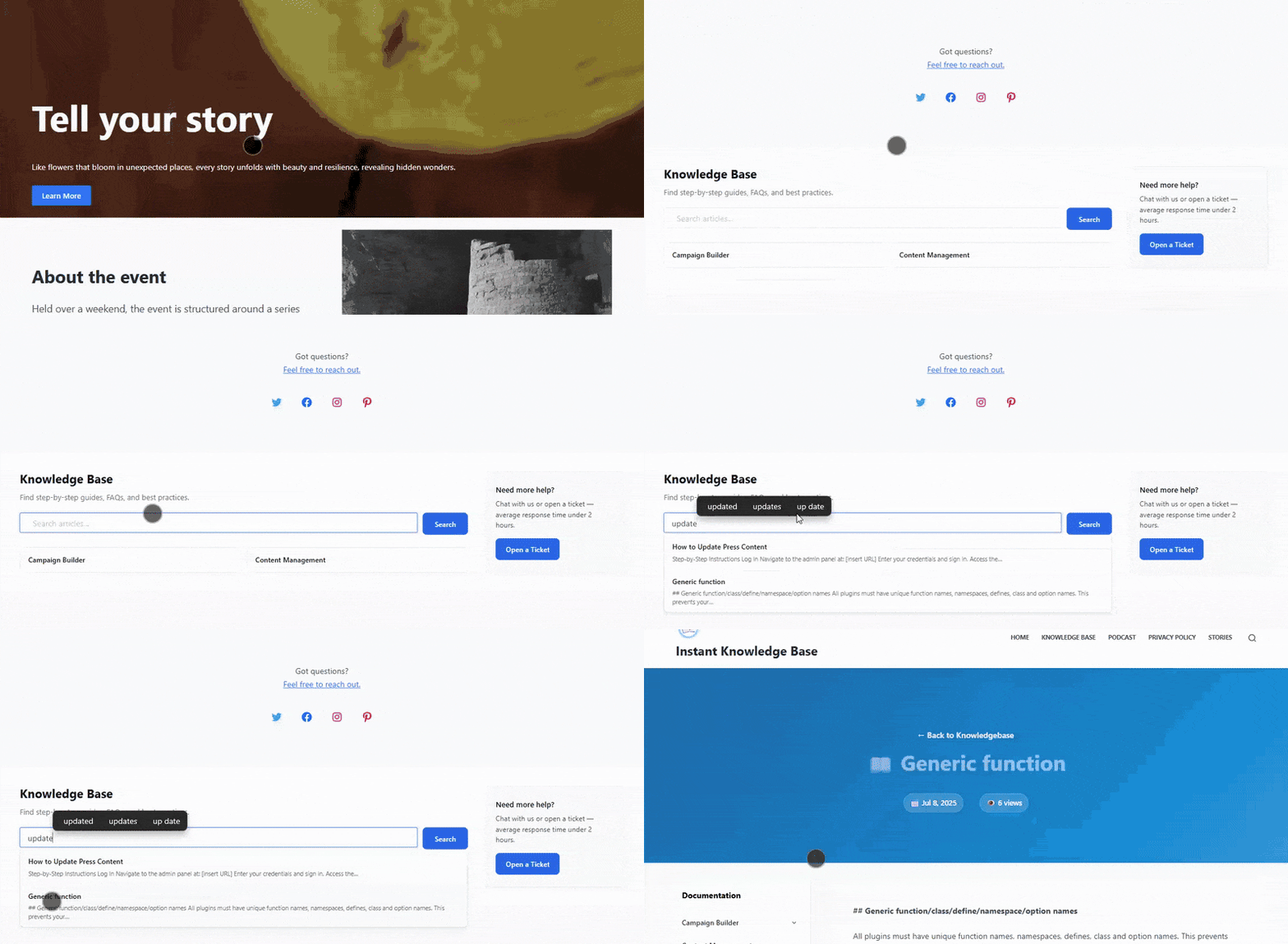
Step 3: Test the Knowledge Base Widget
After placing the shortcode and publishing the page:
- Visit the page as a user.
- Use the search bar (if enabled) to look up a keyword or phrase.
- Verify that relevant articles are displayed.
- Check the “Need more help?” section to ensure it’s correctly linked and styled.
This final step is crucial to confirm that everything is functioning correctly and delivering a seamless experience to your visitors.
Setting up the knowledge base widget is a straightforward yet impactful way to improve customer support and user satisfaction. Its versatility allows you to position it exactly where your users need it most. Once installed and configured, it becomes a central hub for self-service support—boosting engagement and reducing support tickets.
For best results, keep your articles updated and track which queries are most searched to identify content gaps.