
The WooCommerce Status Widget, also known as the WooCommerce Overview, is a vital component of your WordPress Dashboard. It offers store owners instant access to critical metrics such as total sales, recent orders, and inventory status. But what happens when it suddenly vanishes? Whether it disappeared after an update, plugin installation, or database migration, don’t panic — restoring it is a straightforward process.
In this guide, you’ll learn how to restore the WooCommerce Status Widget using several reliable methods, including screen settings, database tweaks, and helper plugins.
What Is the WooCommerce Status Widget?
The WooCommerce Status Widget appears under Dashboard → Home on your WordPress site. It provides a snapshot of your store’s current activity and performance. Here’s what it typically shows:
- Total sales and net revenue
- Recent orders
- Top-selling products
- Inventory or stock alerts
- Shortcuts to manage WooCommerce
This widget is especially useful for store owners and administrators who want a quick overview of their business without diving into detailed reports.
Why Does the WooCommerce Status Widget Disappear?
The disappearance of the WooCommerce Overview widget is usually triggered by one of the following scenarios:
- New Installation or Site Migration
After a fresh WooCommerce installation or migration, default user meta settings may not load correctly. - Plugin Conflicts
Some dashboard customization or admin UI plugins may interfere with WooCommerce widgets. - User Meta Reset
WooCommerce widgets are stored as user metadata. A reset or cleanup might accidentally remove this configuration. - Hidden in Screen Options
The widget may simply be disabled in the Dashboard’s Screen Options — a common oversight.
How to Restore the WooCommerce Status Widget
Let’s go through step-by-step solutions for restoring the missing widget.
Option 1: Check Screen Options
This is the easiest fix.
- Navigate to Dashboard → Home.
- Click on the Screen Options tab at the top-right corner.
- Check if WooCommerce Status or WooCommerce Overview is listed.
- If it’s unchecked, simply tick the box.
The widget should immediately reappear on your dashboard.
Option 2: Reset User Dashboard Preferences via Database
Sometimes, corrupted user settings hide the widget. To fix this:
- Access your database using phpMyAdmin or a plugin like WP phpMyAdmin.
- Open the wp_usermeta table.
- Search for a meta_key like
_wp_dashboard_widgetsfor your user ID. - Delete or clear that entry.
After logging back into WordPress, all default dashboard widgets (including WooCommerce) will be visible again.
Pro Tip: Back up your database before making manual edits.
Option 3: Use a Helper Plugin
For non-technical users, using a plugin is the safest approach.
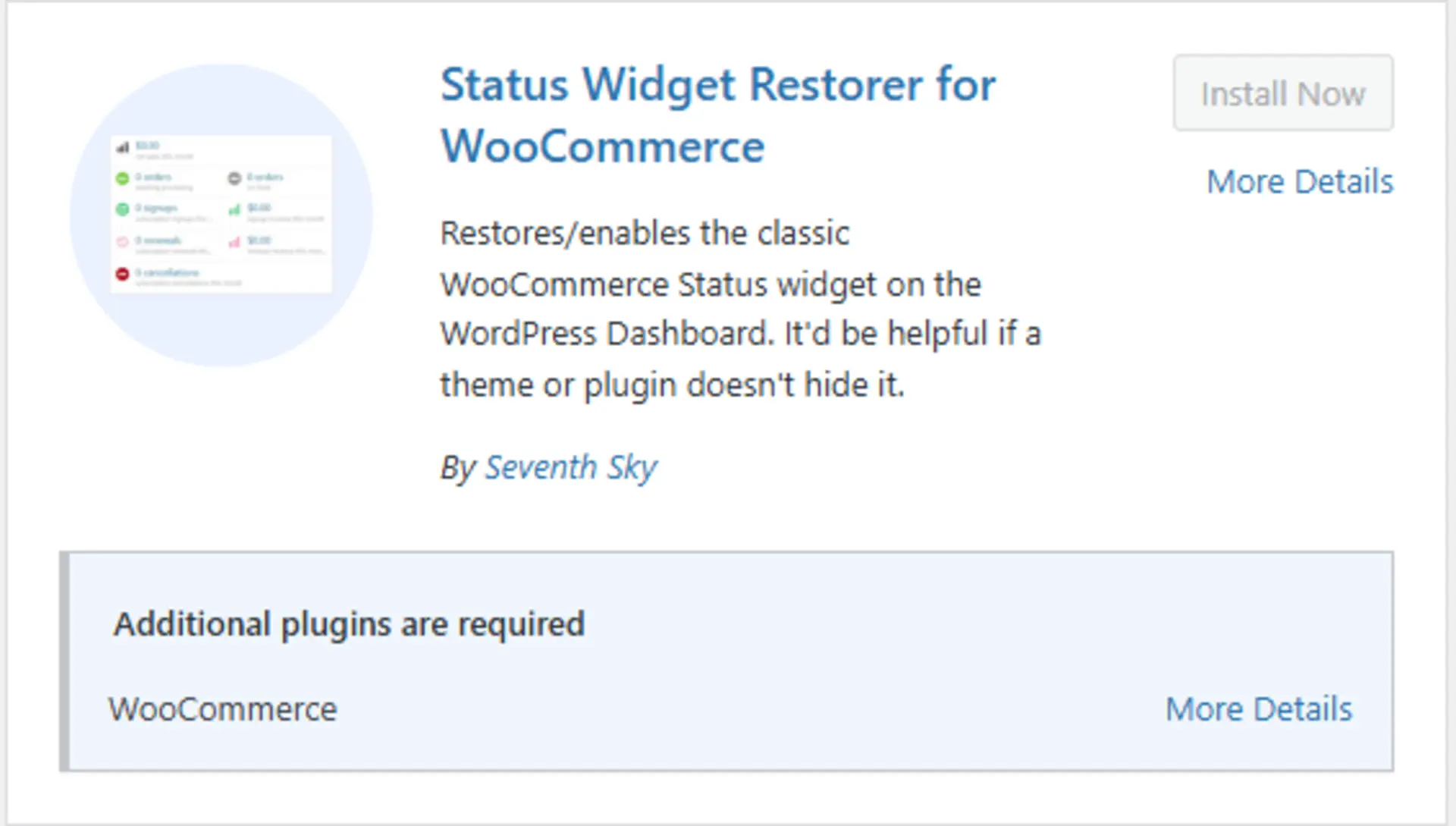
Install the Status Widget Restorer for WooCommerce:
- Go to Plugins → Add New
- Search for Status Widget Restorer for WooCommerce
- Verify by Seventh Sky
- Click Install Now, then Activate
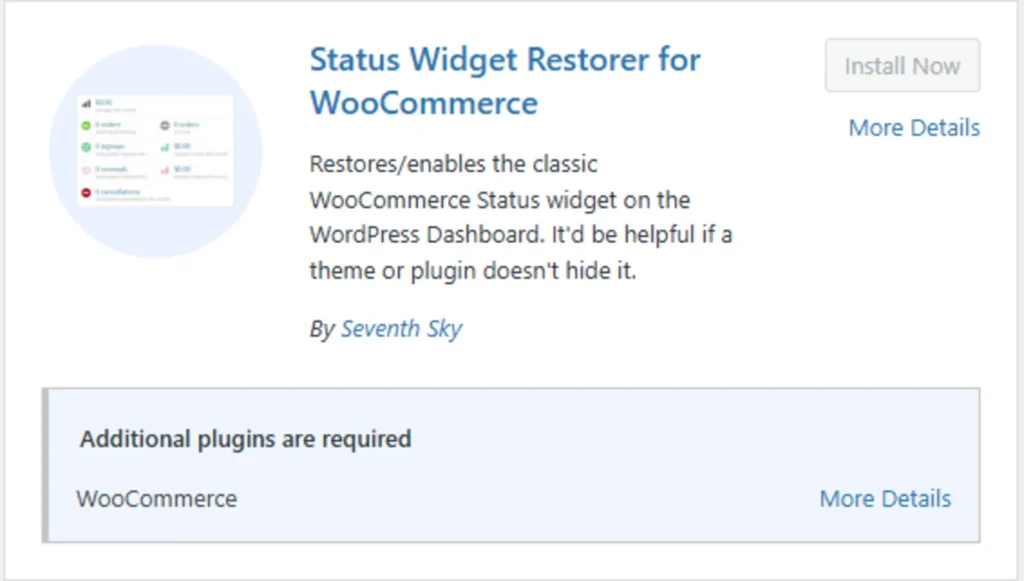
This plugin is lightweight, requires no configuration, and instantly restores the missing widget upon activation.
Refreshing Your WooCommerce Data
Once the widget is restored, the data it displays may still appear outdated. Here’s how to fix that:
- Navigate to WooCommerce → Status → Tools
- Run these tools:
- Clear Transients
- Regenerate Analytics Data
This will refresh all the WooCommerce-related data used in the dashboard widgets.
Troubleshooting Additional Issues
If none of the above methods restore the widget, consider:
- Switching themes temporarily to see if the issue is theme-related.
- Disabling other admin dashboard plugins that might conflict.
- Ensuring that WooCommerce is updated to the latest stable version.
Also, check your browser’s console (F12 → Console tab) for any JavaScript errors that could be blocking widgets from rendering.
Restore Your Dashboard Control
Losing access to the WooCommerce Status Widget can be frustrating, especially when you rely on it for daily operations. Thankfully, restoring it doesn’t require coding skills or professional help. Whether it’s as simple as enabling a checkbox in Screen Options or using a dedicated plugin, you have multiple ways to recover your overview dashboard.
By following this guide on how to restore the WooCommerce Status Widget, you can quickly regain visibility into your store’s key metrics and keep your business running smoothly.