
Internal linking is one of the simplest SEO practices to implement, yet it is often overlooked during content creation. Well-placed internal links help visitors discover related information, distribute authority between pages, and give search engines a clearer picture of your website structure.
Fortunately, you do not need to open multiple browser tabs or search your website manually every time you want to connect one article to another. WordPress already includes basic tools that let you add internal links in WordPress directly from the editor.
However, as your website grows from a few dozen posts to hundreds or thousands of pages, the manual process can become inefficient. In this guide, you will learn how to create WordPress internal links manually using Gutenberg, why internal linking matters for SEO, and how tools such as 7Sky Internal Post Linker can make the process more convenient.
What Are Internal Links in WordPress?
An internal link is a hyperlink that connects one page on your website to another page on the same domain.
For example, imagine you publish an article explaining how to improve WordPress website speed. Inside that article, you might link to another post about image optimization, caching, or choosing a WordPress hosting provider.
Because both pages belong to the same website, these are internal links.
Internal linking differs from external linking. An external link sends visitors to another domain, while a WordPress internal link keeps users within your website.
A good internal linking strategy can help:
- Visitors find relevant content more easily.
- Search engines discover pages that might otherwise receive few links.
- Website owners establish relationships between related topics.
- Important pages receive additional internal authority.
- Users spend more time exploring useful content.
Therefore, learning how to add internal links in WordPress should be part of almost every content publishing workflow.
Why WordPress Internal Links Matter for SEO
Google uses links to discover and understand web pages. Internal links can therefore provide both navigational and contextual signals.
Google’s documentation on links explains that descriptive anchor text helps users and search engines understand what a linked page contains. Instead of linking generic phrases such as “click here,” website owners should generally use words that describe the destination page.
For instance, consider these two examples:
Weak anchor text:
“Click here to learn more.”
Descriptive anchor text:
“Read our WordPress security checklist.”
The second version communicates far more information about the destination.
Internal links can also help search engines understand which pages are related. If several articles about WordPress SEO link to a detailed WordPress SEO guide, those connections provide additional context about the site’s content hierarchy.
However, internal links should primarily be useful for readers. Adding dozens of irrelevant links simply to manipulate rankings creates a poor experience and can make an article difficult to read.
How to Add Internal Links in WordPress Using Gutenberg
The WordPress block editor, commonly called Gutenberg, includes built-in internal linking functionality.
You can add internal links in WordPress without leaving the post you are currently editing.
Step 1: Highlight Your Anchor Text
Open the WordPress post or page you want to edit.
Next, highlight the words you want visitors to click.
Ideally, choose anchor text that naturally describes the page you plan to link to. For example, if your destination article is about installing WordPress plugins, anchor text such as “install a WordPress plugin” is more descriptive than “learn more.”
Step 2: Select the Link Option
Once you highlight the text, the Gutenberg formatting toolbar appears.
Click the Link icon.
Alternatively, you can usually use the keyboard shortcut:
Ctrl + K on Windows
Command + K on macOS
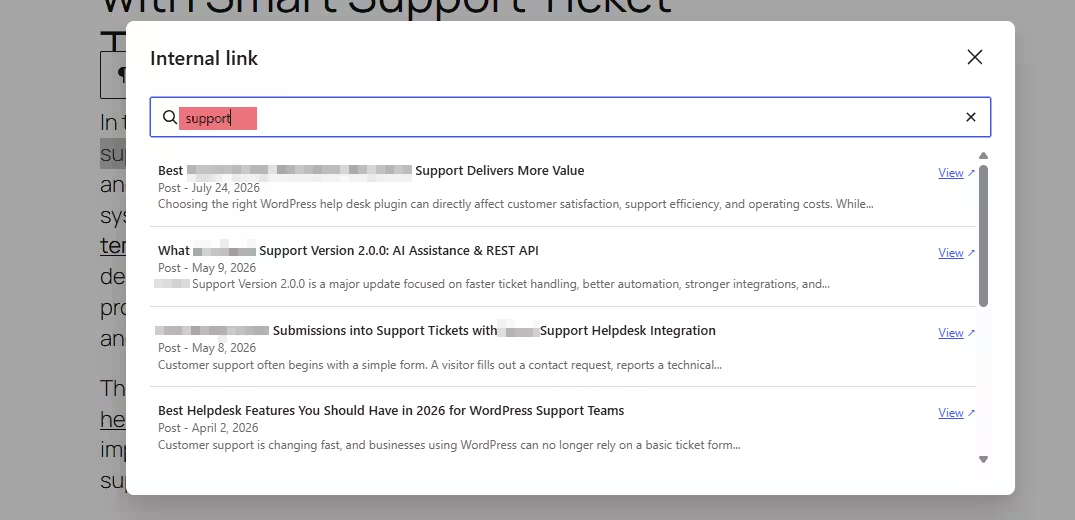
WordPress will display a small search field.
Step 3: Search for an Existing WordPress Post
Instead of manually finding and copying a URL, start typing the title or keywords associated with an existing post.
For example, if you want to link to an article called “How to Optimize WordPress Images,” you might search:
“WordPress images”
WordPress will return matching posts and pages.
Choose the appropriate result, and WordPress will automatically insert the internal URL.
Step 4: Confirm the Link
After choosing the page, confirm the link if required by your WordPress version.
Your anchor text should now become clickable within the editor.
Before publishing, consider previewing the article and testing the link to ensure it points to the correct destination.
This method works well for small websites and situations where you already know which article you want to reference.
How to Add Internal Links WordPress Users Can Actually Benefit From
Knowing how to insert a hyperlink is only the technical part of internal linking. Selecting the right pages is considerably more important.
When you add internal links in WordPress, every link should have a reason to exist.
For example, suppose you publish this sentence:
“Reducing oversized images can significantly improve page loading performance.”
If your website already contains a detailed tutorial about compressing images, linking the phrase “compressing images” to that article helps readers who want additional instructions.
In contrast, linking an unrelated page about email marketing simply because you want that page to receive more internal links would provide little value.
A useful rule is to ask:
Would someone reading this sentence reasonably want more information about the linked topic?
If the answer is yes, the internal link is probably relevant.
The Limitation of Manual Gutenberg Internal Linking
WordPress’s native search function is convenient, but it has limitations.
The biggest challenge appears as your content library grows.
Imagine managing a WordPress site with 500 published articles. While writing a new post, you may remember five or ten related articles. However, there could be another 30 relevant posts that you have forgotten about.
The native WordPress linking workflow depends heavily on knowing what to search for.
This creates several problems.
Older content may receive fewer internal links because writers forget it exists. New contributors may not know the site’s entire content library. Additionally, finding the best related post can require trying several different search phrases inside the editor.
Another challenge is workflow interruption. Writers sometimes leave Gutenberg, open the Posts screen, search for an article, copy its URL, and then return to their draft.
That process only takes a short time for one link. Repeating it throughout dozens of articles, however, can significantly slow down content production.
A Faster Way to Add Internal Links in WordPress
For websites publishing content regularly, an internal linking plugin can reduce some of the repetitive work.
After learning the manual method, you may want a workflow that helps surface relevant posts while you are already creating content.
One option is 7Sky Internal Post Linker.
7Sky Internal Post Linker is designed to make internal post discovery more convenient inside WordPress. Instead of repeatedly leaving the editor to search through your content library, an internal linking tool can help writers locate suitable existing content while maintaining their writing workflow.
This can become particularly useful for:
- Blogs with large archives.
- News and magazine websites.
- Affiliate websites publishing topic clusters.
- Agencies managing content for multiple clients.
- Documentation websites with many related tutorials.
- SEO teams updating older WordPress content.
The objective is not to add as many links as possible. Instead, the goal is to reduce the friction involved in finding genuinely useful internal linking opportunities.
Manual Internal Linking vs. an Internal Linking Plugin
The best method depends largely on the size and complexity of your website.
For a small blog with 20 posts, Gutenberg’s built-in search function may be completely sufficient. You probably remember most of your existing articles and can locate them quickly.
However, consider a website with 2,000 posts distributed across several categories. Remembering every relevant page becomes practically impossible.
In that situation, a specialized internal linking workflow becomes much more valuable.
The difference can be summarized simply:
Manual linking is ideal when you know exactly what you want to link to.
Internal linking tools are useful when discovering the right existing content is the difficult part.
Therefore, you do not necessarily need to replace WordPress’s native functionality. Instead, a plugin such as 7Sky Internal Post Linker can complement the editor when your content library becomes harder to navigate.
Best Practices for WordPress Internal Links
Whether you create links manually or use a plugin, several SEO principles remain important.
Use Descriptive Anchor Text
Anchor text should provide context.
Instead of:
“Read this article.”
Consider:
“Learn how to improve WordPress Core Web Vitals.”
The second anchor immediately tells visitors what they will find.
Link to Relevant Content
Internal links should make contextual sense.
If an article discusses WordPress security, links to related content about malware protection, backups, login security, or plugin vulnerabilities may be useful.
A random link to an unrelated article is less helpful.
Avoid Excessive Internal Links
There is no universal number of internal links that every article should contain.
A 600-word tutorial might only need several links. A 5,000-word technical guide could naturally contain many more.
Instead of targeting an arbitrary number, link whenever another page genuinely improves the reader’s understanding or navigation.
Prioritize Important Pages
Some pages deserve more internal visibility than others.
For example, if your website contains a comprehensive guide covering an important commercial or informational topic, supporting articles can naturally link back to that central resource.
This approach is commonly associated with content clusters or hub-and-spoke SEO strategies.
Fix Broken Internal Links
Websites change over time. Posts are deleted, URLs are updated, and categories are reorganized.
As a result, previously valid links can eventually produce 404 errors.
Periodically auditing WordPress internal links can help identify broken URLs and outdated destinations.
Do Not Force Exact-Match Keywords Everywhere
Anchor text should sound natural.
If every link to a page uses exactly the same keyword, your writing can quickly become repetitive. Instead, use descriptive variations where appropriate.
For example, links pointing to an article about WordPress caching could use anchor text such as:
“WordPress caching”
“configure website caching”
“improve WordPress cache performance”
“our caching guide”
Variation generally creates more natural writing while still providing useful context.
Internal Linking During Content Updates
Internal linking should not only happen when publishing new posts.
Updating older content provides an excellent opportunity to create new internal connections.
Suppose you published an article two years ago about choosing WordPress themes. Since then, you may have published newer guides covering block themes, full-site editing, theme performance, and customization.
The original article cannot automatically reference content that did not exist when it was written.
Therefore, older posts should periodically be revisited.
During an update, look for opportunities to:
- Link older articles to recently published resources.
- Replace outdated destination pages.
- Improve vague anchor text.
- Remove broken links.
- Strengthen links between articles covering related topics.
This process can improve navigation without requiring completely new content.
For larger sites, tools that simplify internal post discovery can make these updates much easier.
Should Internal Links Open in a New Tab?
In most cases, internal links do not need to open in a new browser tab.
Users generally expect links within the same website to behave like normal navigation. Opening every internal page in a new tab can leave visitors with many unnecessary browser tabs.
There are situations where opening a link separately may make sense, particularly if users need to keep a reference page available while completing a process. However, for ordinary blog navigation, the default same-tab behavior is typically simpler.
Common Internal Linking Mistakes
Even when you know how to add internal links in WordPress, several mistakes can reduce their usefulness.
One common mistake is only linking to the newest articles. Older evergreen content can still be highly valuable and deserves internal visibility.
Another problem is linking the same destination repeatedly within a short section without a clear reason.
Website owners should also avoid using unrelated anchor text merely because it contains a target keyword.
Finally, do not treat internal linking as a one-time SEO task. A growing website constantly creates new relationships between old and new content.
Internal linking should evolve alongside your content library.
WordPress makes it relatively easy to create internal links without leaving the editor. Highlight your desired anchor text, open Gutenberg’s link tool, search for an existing page, and select the relevant result.
For smaller websites, this manual workflow may be all you need.
However, the process becomes more challenging as your content archive expands. Writers may forget older posts, struggle to locate relevant pages, or interrupt their workflow repeatedly while searching for URLs.
That is where tools such as 7Sky Internal Post Linker can become useful. By making internal content easier to locate while you work, an internal linking plugin can reduce repetitive searching and help teams build stronger connections between related articles.
Ultimately, the goal is not simply to add internal links in WordPress for SEO. The best internal links help readers move logically from one useful resource to another while simultaneously giving search engines a clearer understanding of your website’s structure.
When relevance, descriptive anchor text, and usability remain the priority, internal linking can become one of the simplest ways to improve both content navigation and your overall WordPress SEO strategy.