
Once you are familiar with the builder layout, the next step is to add fields to the form and arrange them into a clean structure.
Skyflow Forms allows you to add standard input fields as well as container layouts. Standard fields collect user information, while containers help organize those fields into columns.
This combination helps you create forms that are both functional and visually clean.
Step 1: Open the Basic Fields Section
In the Input Fields tab, open the Basic Fields section.
This section contains the main free fields used in most forms.
Free Basic Fields
The following basic fields shown in the builder are available in the free version:
- Name Fields
- Simple Text
- Text Area
- Dropdown
- Radio Field
- Checkbox
- Phone
- Button
These fields are enough to create many common forms such as contact forms, inquiry forms, feedback forms, and simple registration forms.
Step 2: Drag Fields Into the Canvas
To add a field, drag it from the left panel and drop it into the form canvas on the right.
Each field becomes part of the live form structure.
For example, if you are building a contact form, you might add fields in this order:
- Name Fields
- Phone
- Simple Text for subject
- Text Area for message
- Button
This creates a clean, familiar layout for users.
Tip: Add fields in the order you want visitors to complete them. This makes the form easier to use from the start.
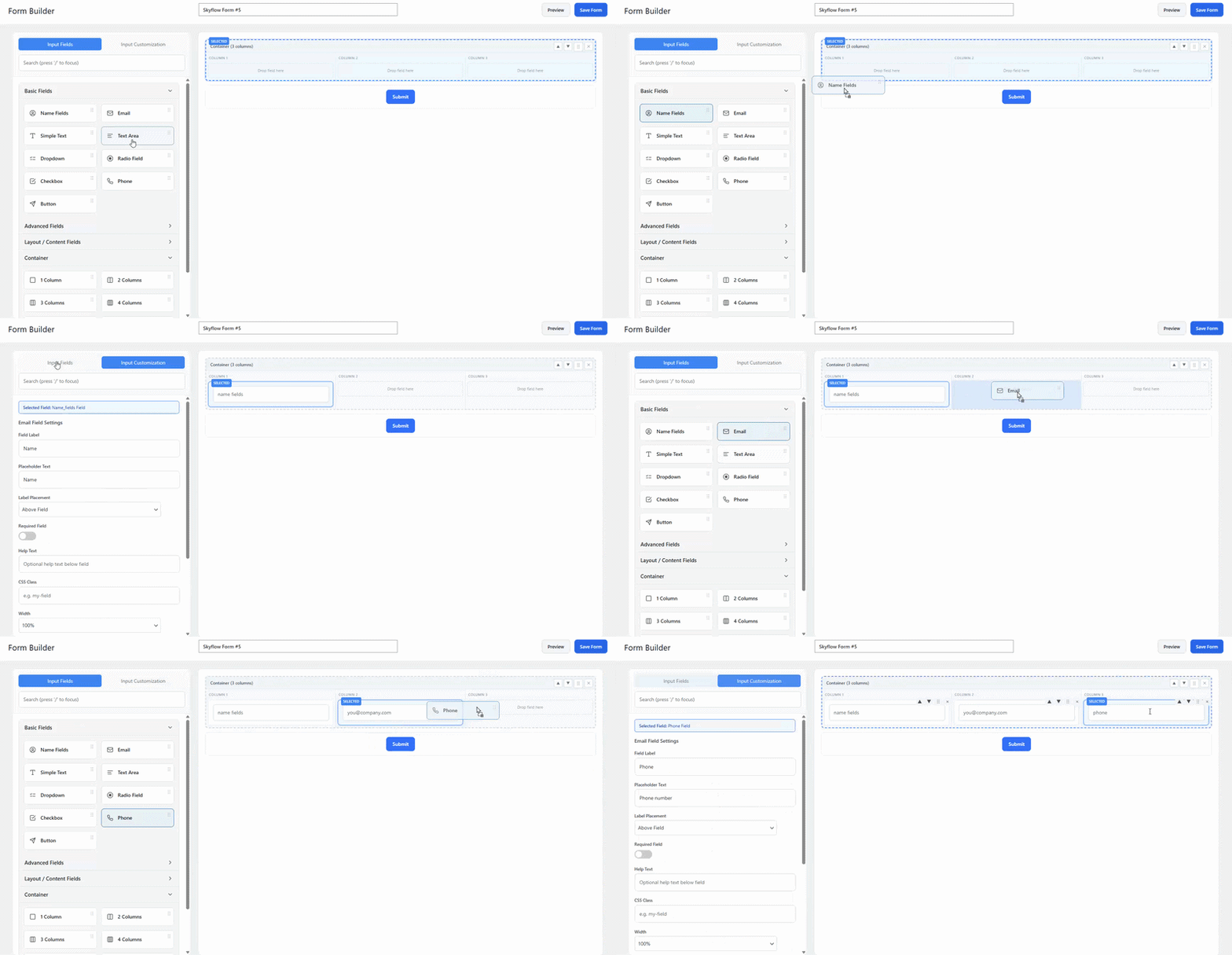
Step 3: Click a Field to Edit It
After adding a field to the canvas, click on it.
When selected, the builder automatically switches to Input Customization, where you can edit that field’s settings.
This makes field editing faster because you do not need to search through a separate settings screen.
Depending on the field type, you may be able to edit things such as:
- Label text
- Placeholder text
- Help text
- Field options
- Required status
- Button text
This allows you to shape the form around your actual use case instead of relying on default field names.
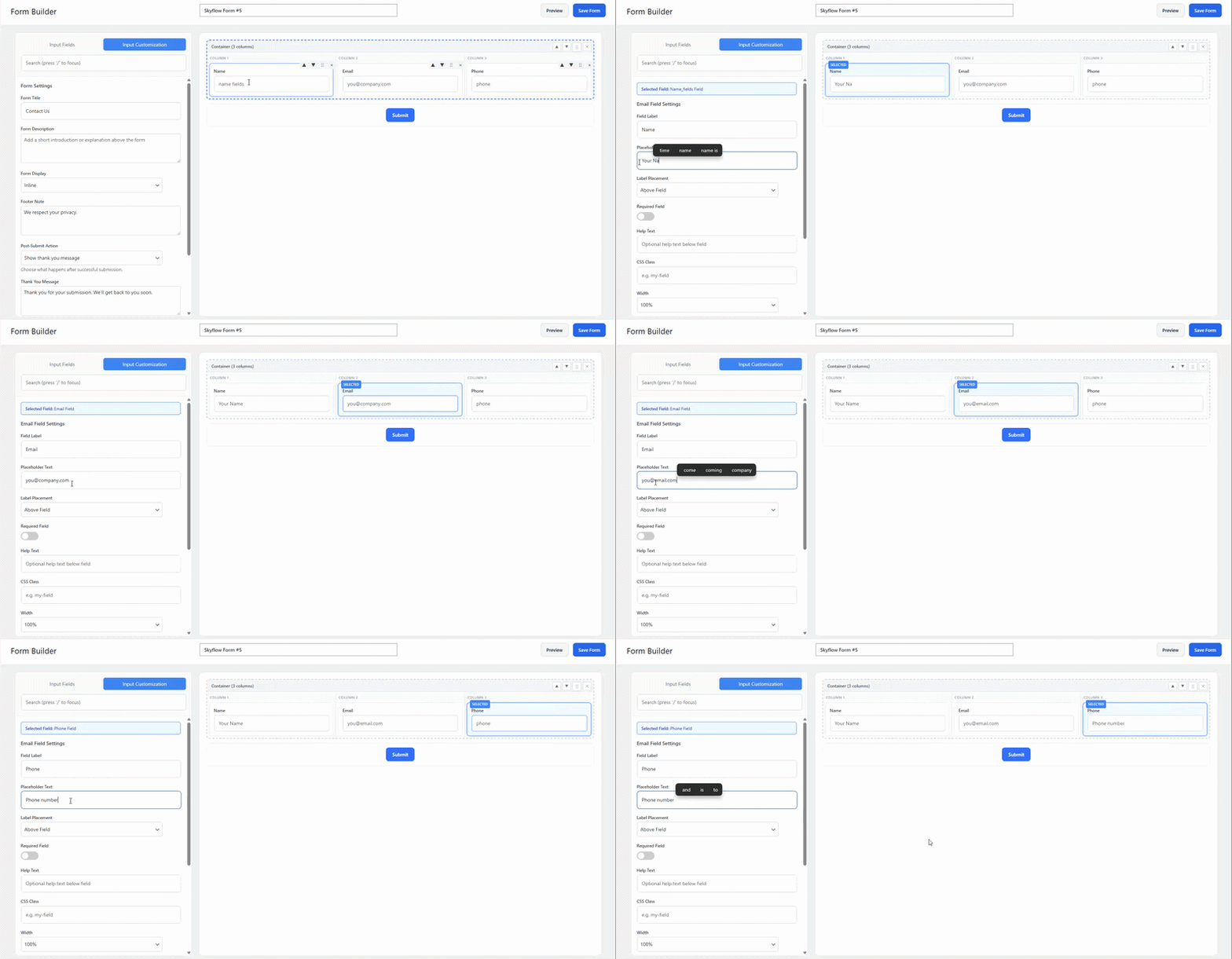
Step 4: Use Clear Labels for Better Forms
Each field should clearly tell the user what information is expected.
For example:
- Use Full Name instead of a vague label
- Use Your Email Address instead of simply Email if clarity is needed
- Use How can we help you? for a message field instead of generic wording
Clear labels improve usability and reduce confusion.
Simple Tip: If a field label sounds too technical or generic, rewrite it in a more natural way.
Step 5: Open the Container Section
In the same left panel, open the Container section.
This section includes layout containers that help you organize fields into columns.
Free Container Fields
The basic container layouts available are:
- 1 Column
- 2 Columns
- 3 Columns
- 4 Columns
- 5 Columns
- 6 Columns
These container fields shown in the builder are part of the free basic layout tools.
Step 6: Use Containers to Build Better Layouts
Containers are used to control layout structure.
Instead of stacking every field one below another, containers let you place fields side by side in columns.
This is especially useful for:
- First and last name layouts
- Email and phone side by side
- Short grouped fields
- More compact and modern forms
Note: Containers organize layout only. You still need to drag actual form fields into them.
Step 7: Drop Fields Into Container Columns
Once a container is added to the canvas, drag fields into the empty column areas inside it.
This gives you more control over the spacing and overall structure of the form.
For example:
- Add a 2 Columns container
- Place Name Fields in the first column
- Place Phone in the second column
This makes the form look more balanced and saves vertical space.