
Skyflow Forms includes a visual drag-and-drop builder that helps you create forms directly inside your WordPress dashboard. Instead of configuring everything manually, you build your form by dragging fields from the left panel and placing them on the canvas on the right.
This makes it easy for beginners to create forms quickly while still giving enough flexibility for more structured layouts.
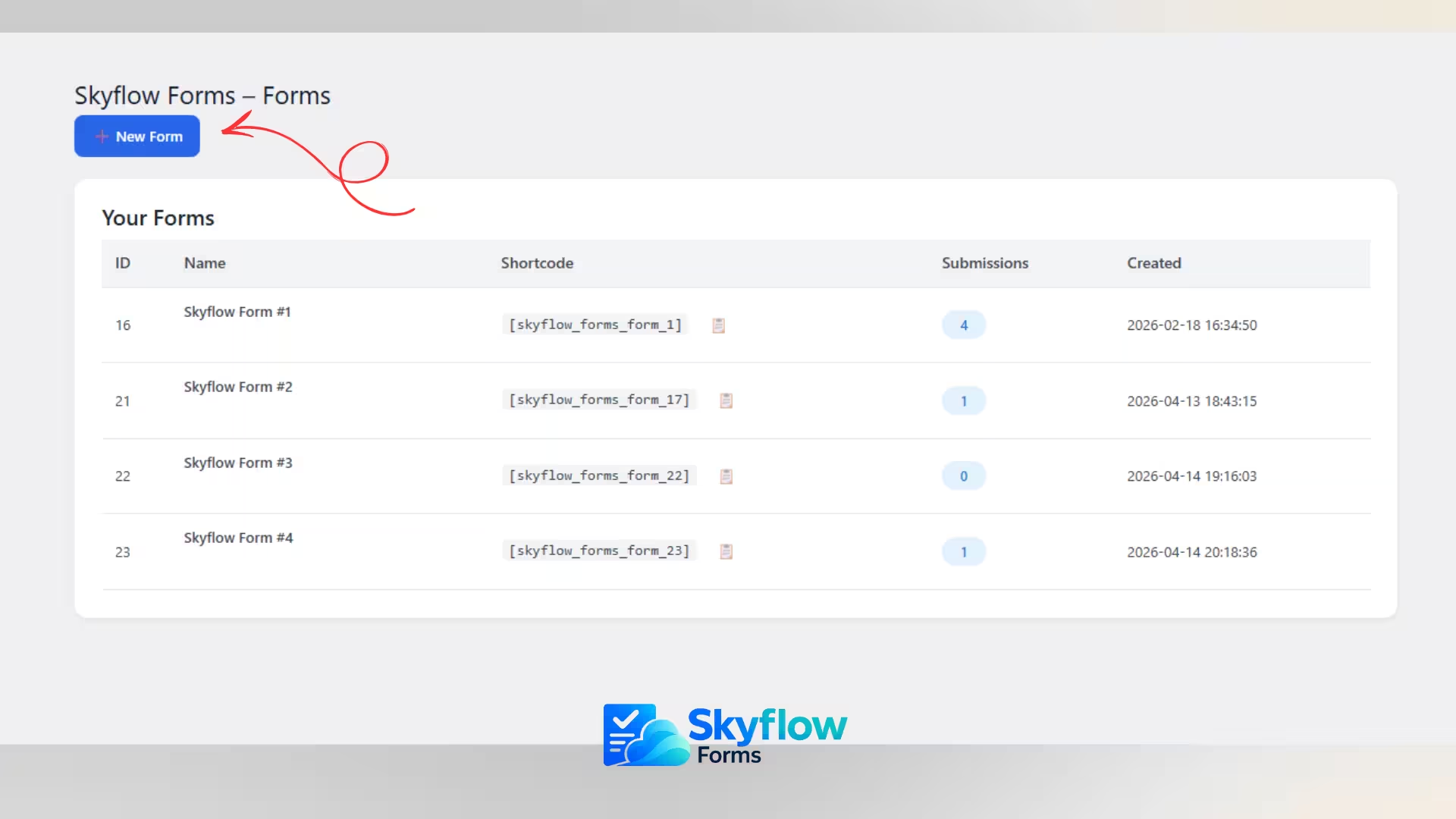
Step 1: Open a New Form
To create a form, go to:
Skyflow Forms → New Form
You may also be able to open the same screen from the plugin dashboard through a quick access link.
Once opened, you will see the main form builder screen.
Step 2: Understand the Builder Layout
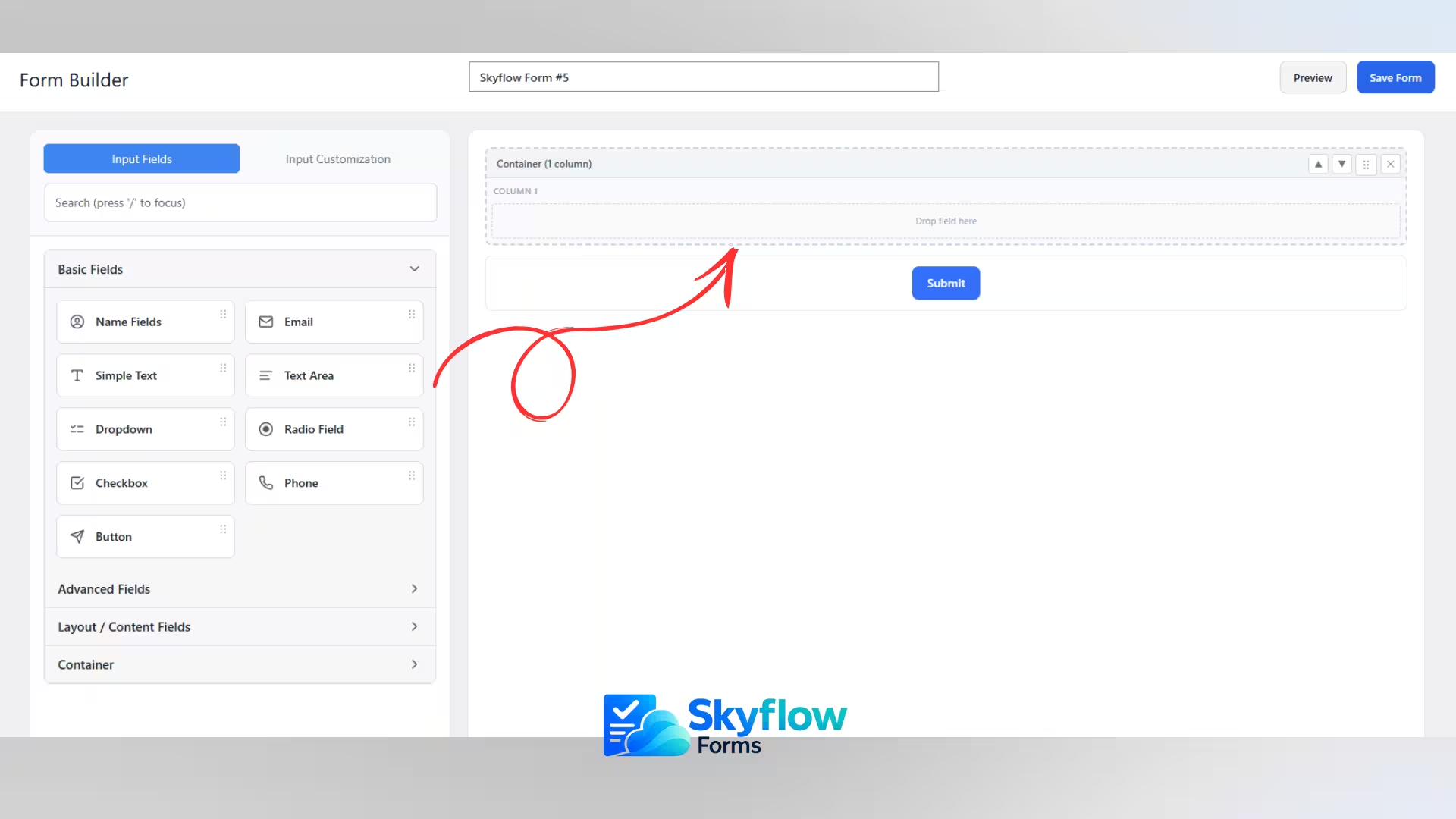
The builder is divided into two main areas:
Left Panel
This is where you manage the available fields and form settings. It contains:
- Input Fields
- Input Customization
- A field search box
- Field groups such as:
- Basic Fields
- Advanced Fields
- Layout / Content Fields
- Container
Right Panel
This is the form canvas. It is the working area where you build the form layout by dropping fields into place.
The canvas gives you a visual structure of the form as you build it.
Step 3: Enter a Form Name
At the top of the screen, enter a name for your form.
Use a name that clearly describes the purpose of the form, such as:
- Contact Form
- Support Form
- Product Inquiry Form
- Booking Request Form
- Newsletter Signup Form
A clear form name helps you manage forms later, especially when your site contains several forms.
Tip: Use names that match the page or purpose of the form so they are easy to recognize later.
Step 4: Start With the Input Fields Tab
The Input Fields tab is where you begin building the form.
From this tab, you can browse all available fields and drag them into the canvas.
The layout is designed so you can start building immediately without leaving the page or opening extra setup screens.
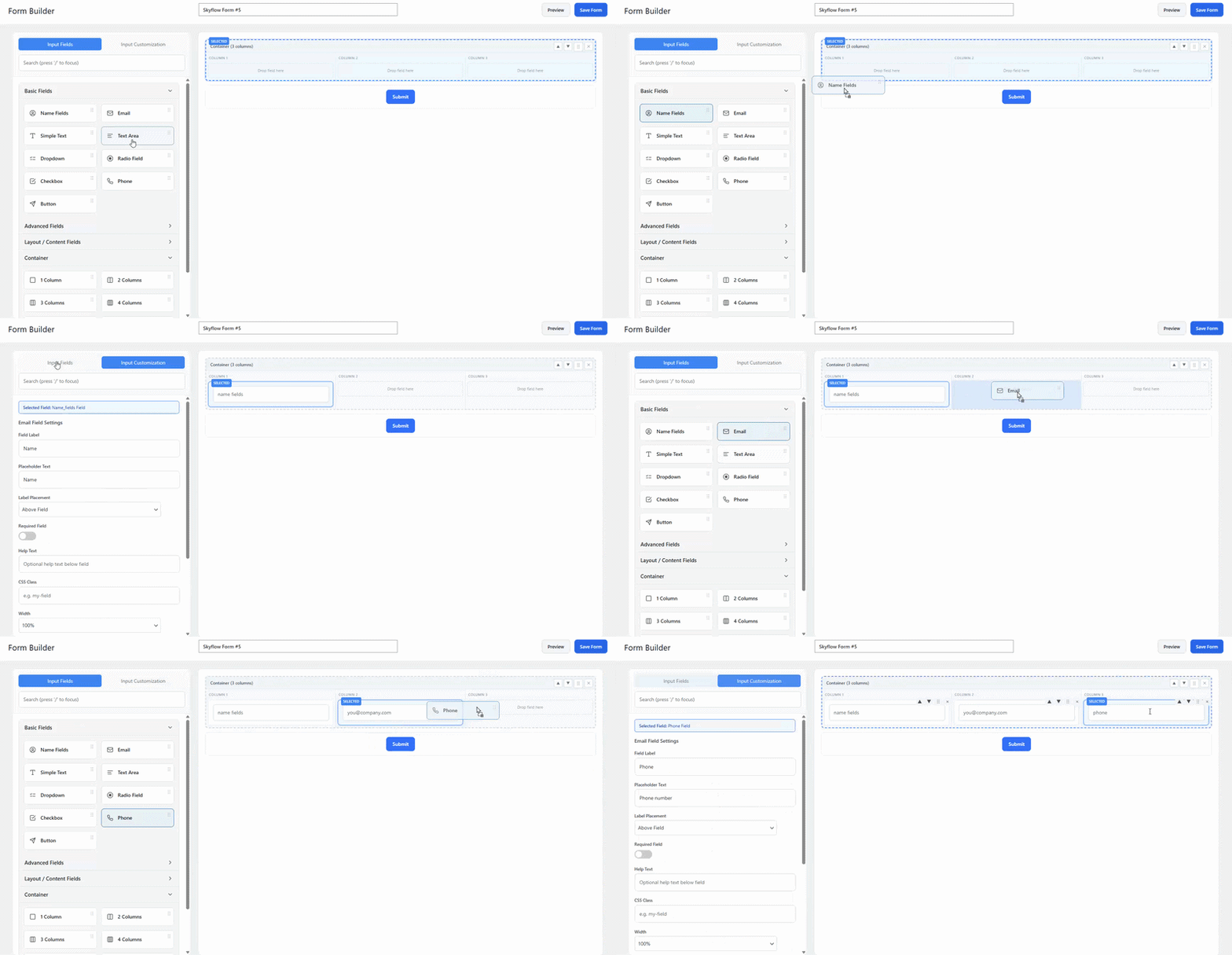
Step 5: Use Drag and Drop to Build the Form
To add a field:
- Open the field group on the left
- Select the field you want
- Drag it to the canvas on the right
- Drop it into the desired area
You can repeat this process until the form contains all the fields you need.
This drag-and-drop workflow is the core of the Skyflow Forms builder.
Note: The right side starts as an empty working area. Your form structure appears there as soon as you begin adding fields.
Step 6: Use the Search Box to Find Fields Faster
At the top of the left panel, there is a search field.
This is useful when:
- You want to quickly find a specific field
- You are working with many field groups
- You want a faster building workflow
Instead of manually opening each group, you can search and go directly to the field you need.